Content Protection
Security

Setting up Admin Accounts with Two Factor Authentication

Tizra now offers the option of requiring two-factor authentication for Admin accounts. Since Admin users have access to the full range of content, user and site management tools, we STRONGLY RECOMMEND that all customers take advantage of this feature to protect their data and operations . Here's how to set it up on an existing site...

  1. Make sure the 2FA feature has been enabled by Tizra. If it has, the following option will be available under SETTINGS > Advanced Site Properties. If it hasn't, reach out to your Tizra support contact.
Require site admins to use 2-Factor authentication
  1. Get in touch with your admin users and let them know that going forward they will need to have a standard authenticator app installed. Compatible apps include...
    Google Authenticator
    Microsoft Authenticator
    Apple Passwords app (in macOS Sequoia/iOS 18 and later)
    FreeOTP
  2. Go to SETTINGS > Advanced Site Properties in your Admin panel and set the Require site admins to use 2-Factor... option to Yes then click Save at the bottom of the page.
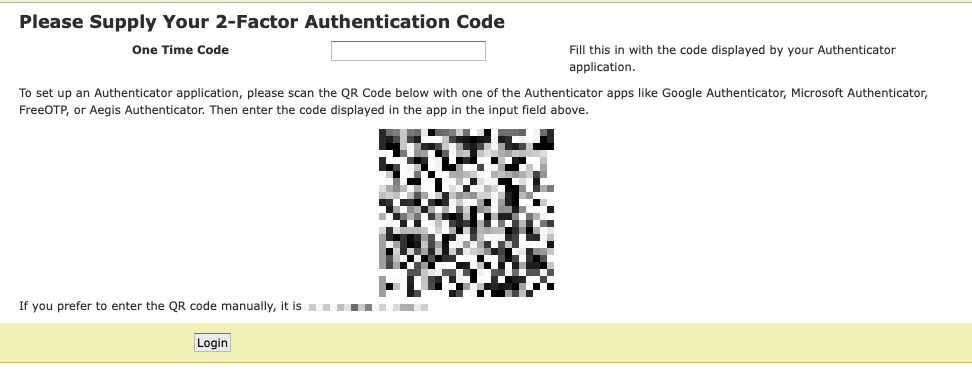
  3. The first time each admin user logs in after the setting is changed, they will receive a setup page like the one below.

Use the QR code to set up a profile in your authenticator app and then paste the resulting one-time code into Tizra.

Note: the one-time code is time-sensitive. If you enter an invalid code, go back to the Admin URL and start the login process again.

Once this process is completed, you'll be able to get a new code from your authenticator app each time you log in (you will not need to go through the QR code process, however).