Metadata
Site Planning
Site Building
The guidelines below are intended to help with preparation of spreadsheet files to be sent to Tizra for batch loading into the platform. For guidance on preparing PDF files, see our PDF Prep Guide. Consult your support rep with any questions.
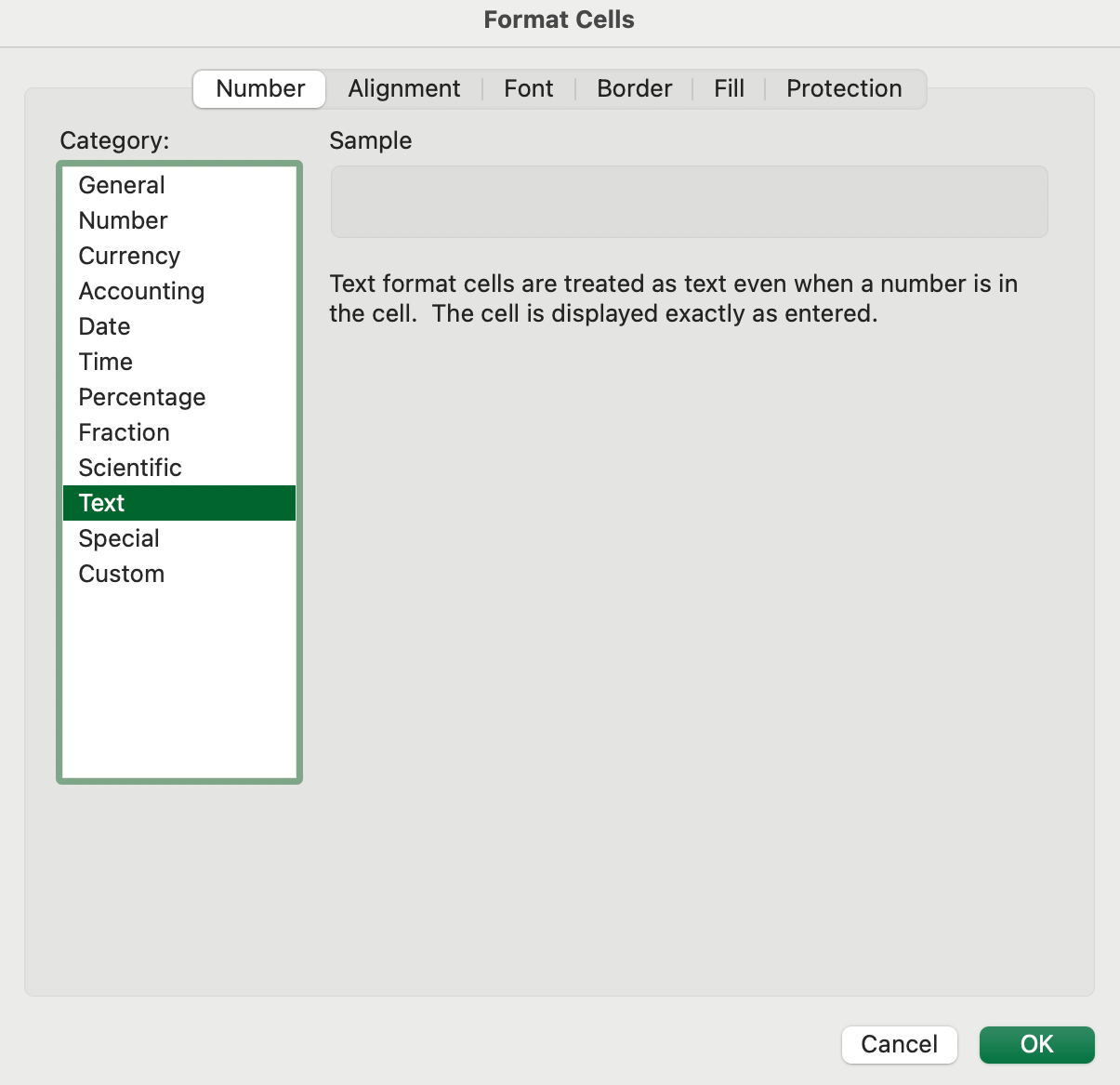
In fields containing multiple values (such as topics, tags or authors), each value should be separated by a semicolon. For example, a field containing multiple topics should be filled out like this:
Topic 1;Topic 2;Topic 3
Note: Do NOT use colons within fields with multiple values.
For longer-form prose that may require simple formatting such as paragraph breaks, bold, italic, etc., text should be provided either in HTML or in Markdown. Note: For consistency of formatting, a limited subset of tags are supported, including...
If unsure, please check with your support rep.
If you want to be able to sort items alphabetically by author, arrange the names so the letters to be sorted on are at the beginning. For example:
Hernández, James L;Jones, Jane R., PhD;Smith, John A., ed.
Dates should be entered in YYYY-MM-DD format. For example, for February 12, 2024, enter:
2024-02-12
If the metadata record relates to a PDF or other content file that will be imported as part of the batch load, identify it by putting its filename into a column provided for that purpose. Notes:
If you want to provide a preview, cover or similar image to be displayed in content listings and detail pages, create a separate spreadsheet column under the heading CoverImage and enter its exact filename or URL similar to content files above. Note: Tizra can automatically generate preview images from PDF files and from videos hosted in platforms like Vimeo and YouTube, so it's often not necessary to upload separate previews.
If you want to make files available as Attachments (files in any format which can be downloaded from content detail page or reader sidebar), reference them in via a separate column similar to preview images.
If you are using a batch load to update content that has previously been loaded, the best place to start is by exporting the previously loaded metadata from Tizra.
The screenshot below shows how to do this from the Tizra Admin.
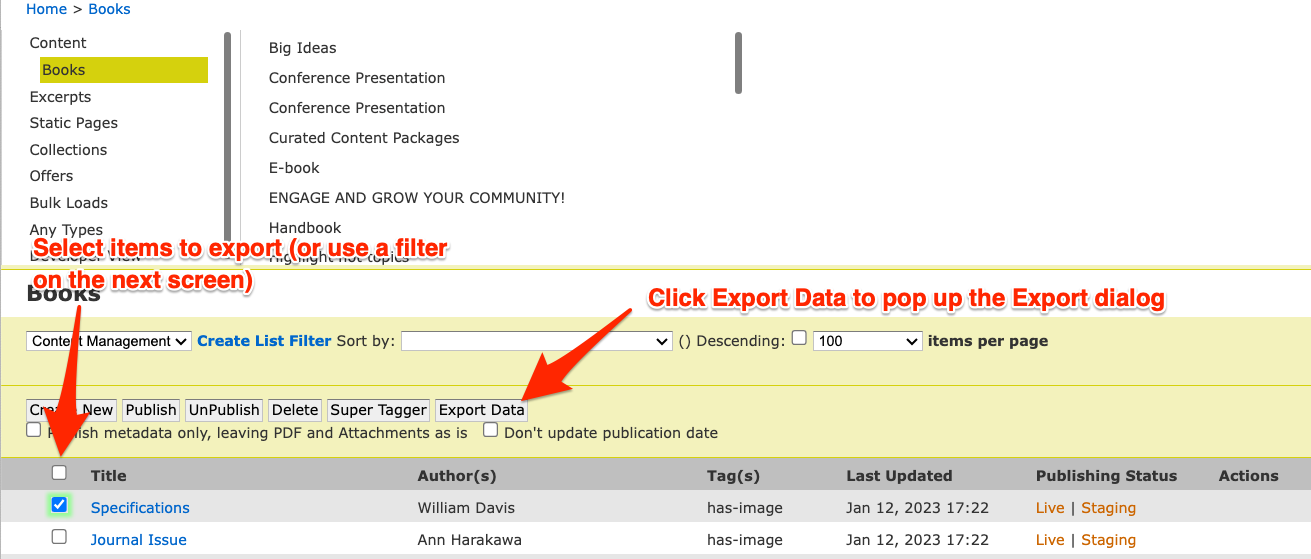
Once you have downloaded the metadata from Tizra, follow these steps...
IMPORTANT: Every time a new spreadsheet is uploaded, it will overwrite previously loaded metadata in ALL of the fields it contains (including any metadata you have edited via the web interface since it was loaded). Every item represented by a row in the sheet will be updated (and any items that are NOT present in the sheet will be unchanged on the server). If there are particular fields that you do not want updated based on the new sheet, you must leave the columns for those fields entirely out of the sheet.