Site Building
Site Planning
Tizra Content Management
Tizra Upgrades
The most recent update to the Tizra Navigation Builder empowers you to create even complex navigation structures without using code. You can create dropdown menus with multiple levels of submenus. And you can even automate menu generation, which makes keeping things up-to-date and in sync much easier, especially on larger sites.
Watch the video for a quick intro, and read on for further details.
The layout of the builder gives an overview of the navigation structure, with submenus indented. To add new items, just type in a label and a URL as shown below. You can create dropdown menus by selecting Switch to menu on an item, then filling in the indented links below.
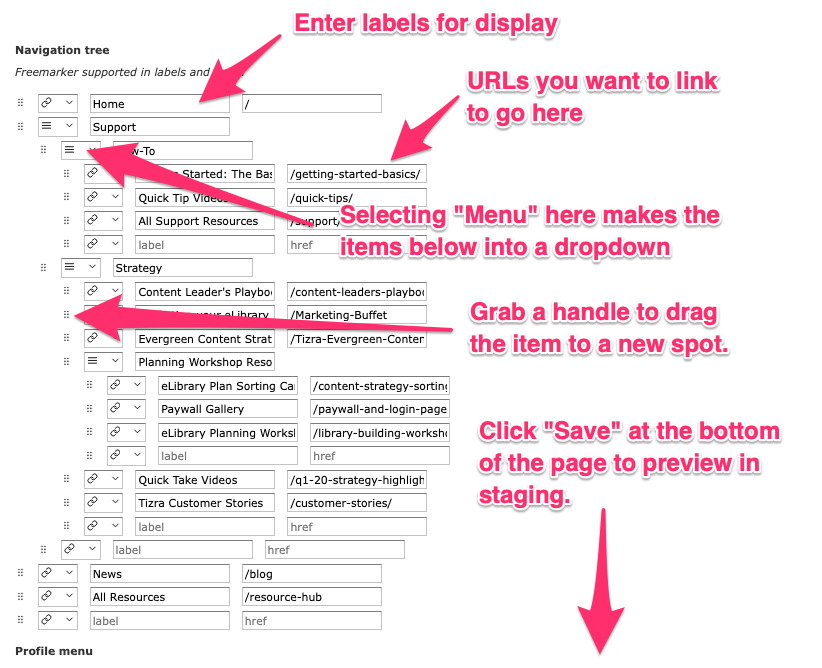
Note: If you're linking to a page within your Tizra site, be sure to use a relative URL as shown below so the links will work on both staging and live.
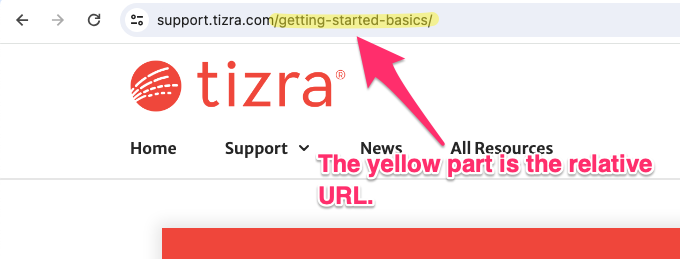
For links to other domains, use the full URL.
The new Nav Builder lets you create "Expando" menus which are basically self-updating menus that automatically list specified items within your Tizra site. The great thing about them is that whenever you add or change items meeting the criteria, the navigation will remain in sync.
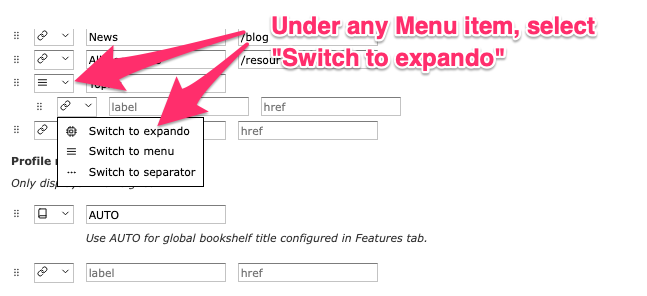
To create an Expando menu, start by creating a regular Menu item. Then in the item below it, select Switch to expando as shown below.
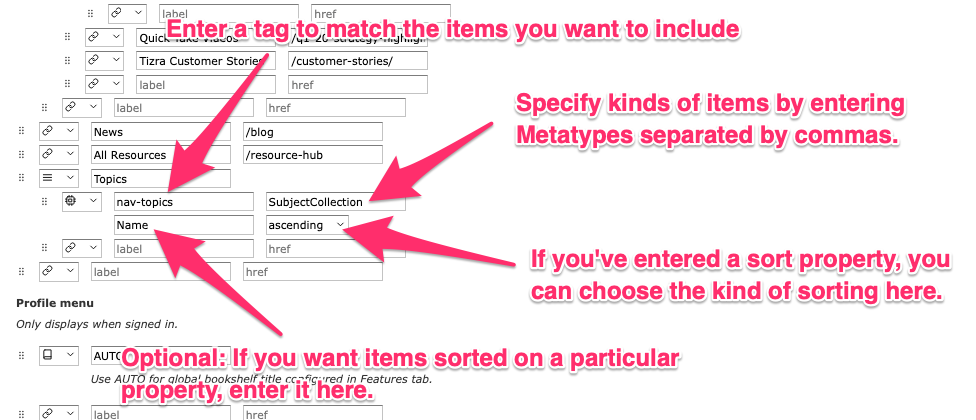
Next, fill in admin tags and meta-types. For example, if you wanted to list all of the Collections that have the tag nav-topics, you'd put "nav-topics" in the admin tag field and SubjectCollection in the meta-type field.
If you want to control the order in which items will appear, enter the name of the property you'd like the sorting to be based on in the sort prop field and select whether the sorting should be ascending (lowest to highest) or descending (highest to lowest).
A note on Meta-Types:
While SubjectCollection is probably the most obvious meta-type for this purpose, you could use others as well. Depending on how your site is set up, you might use...
If you want, you can even enter multiple meta-types by separating them with a comma.